My Journey Fixing Fortnite's Graphics Driver Warning in 2026
Learn the essential, proven steps to swiftly fix the 'Known Issues with Your Graphics Driver' error in Fortnite. Our expert guide reveals the simple driver update process to eliminate frustrating crashes and restore flawless gameplay.
I fired up Fortnite, ready to drop into the latest chapter's map, my excitement bubbling over. The vibrant, ever-changing world of Battle Royale, the strategic thrill of Zero Build, and even the nostalgic throwbacks of Fortnite OG were calling. But instead of the familiar lobby music, a stubborn, glaring warning popped up on my screen: "Known Issues with Your Graphics Driver." My heart sank. This wasn't just a minor glitch; it felt like a locked gate barring me from the island. I'd heard other players grumble about it in creative maps, a shared frustration in our global community. I knew then I had to dive in and fix it, not just for myself, but to share the path forward.
The warning was clear: my system wasn't running the graphics card drivers that Fortnite recommended. The version I had, while seemingly fine for other games, apparently contained known bugs that could stutter my framerate, cause weird textures, or worse, crash my game mid-clutch moment. It wasn't about having a weak card; it was about having the right software talking to it. Think of it like trying to use a new, fancy kitchen gadget with an old, outdated recipe book—things just won't work smoothly.
The solution, I discovered, was straightforward but required knowing where to look. I needed to install the recommended drivers straight from the source. The first step was knowing my own hardware. I pressed the Windows key, typed "DxDiag", and opened the DirectX Diagnostic Tool. A quick switch to the Display tab revealed my GPU's true name—it was like finding the model number on the back of a device. ✨
Armed with that info, my next stop was the manufacturer's website. The process is almost universal, but the destinations differ:
-
For my NVIDIA GeForce card: I headed to NVIDIA's site and found the Drivers section.
-
For AMD Radeon/Ryzen users: The place to go is AMD's Drivers & Support page.
-
For Intel graphics: Intel's Support section for graphics is the key.
Once there, I used the search tool, pasted in my graphics card details, and hunted for the specific version number Fortnite had politely shouted at me during launch. Sometimes, the very latest driver isn't the one you need! If the new update has problems, you might need an older, more stable version. On NVIDIA's site, for example, I clicked "View More Versions" to travel back in driver history and find the golden, recommended one.
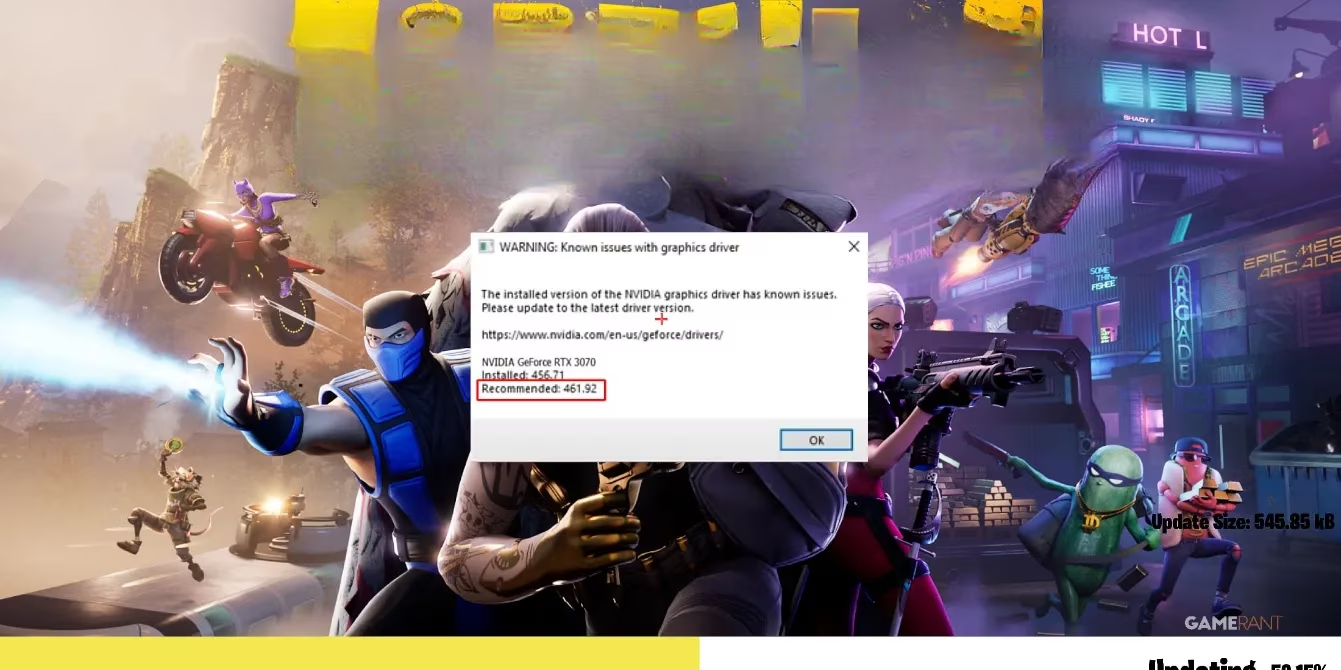
The download and installation were a breeze. I ran the installer, followed the prompts, and let my PC restart. The moment of truth came when I launched Fortnite again. The loading screen appeared... and the warning was gone! Just like that, the gate was unlocked. The vibrant colors of the lobby seemed sharper, and I felt a newfound confidence jumping into a Battle Royale match. No more anxiety about a random crash during the final circle. 🎮
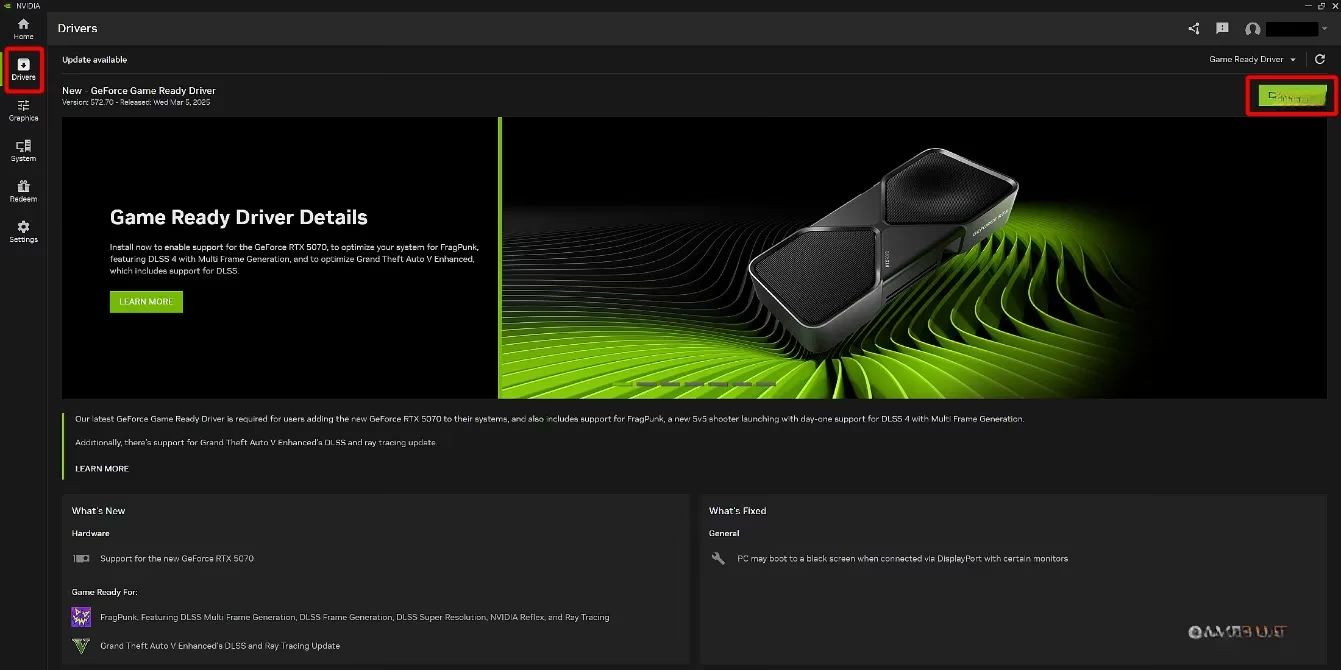
But I wanted a more permanent fix for the future. Manually checking every few months seemed tedious. That's when I explored the automated options. For NVIDIA users like me, the NVIDIA App is a game-changer. After downloading it, the Drivers tab constantly shows if an update is available, making it a one-click process to stay current. It’s like having a personal mechanic for your PC's most critical component.
Here’s a quick cheat sheet I made for my squad:
| Step | Action | Key Tip |
|---|---|---|
| 1 | Identify Your GPU | Use DxDiag > Display Tab. |
| 2 | Visit Manufacturer Site | NVIDIA, AMD, or Intel. |
| 3 | Search for Drivers | Use your GPU's exact model name. |
| 4 | Find the Recommended Version | Check the Fortnite warning or driver history. |
| 5 | Download & Install | Restart your PC afterward! |
| 6 | Consider Auto-Updates | Use tools like the NVIDIA App for ease. |
My journey taught me a valuable 2026 gaming lesson: keeping your drivers updated is crucial, but installing the right drivers is paramount. The ecosystem moves fast, and sometimes the newest isn't the greatest for your favorite game. The process might seem technical, but it's really just a few clicks between you and a seamless Fortnite experience. Now, when I hear that warning mentioned in creative maps, I can confidently share my story. It’s not an insurmountable bug—it’s a simple fix waiting to be applied, a quick tune-up before heading back into the ever-evolving chaos of the island. The thrill of victory is even sweeter when you know your system is running at its best.